Assets & AI Media
Every brand has an assets workspace: the files your site uses, plus AI generated media staged directly into the site. Upload your own files, or let AURAFUSE produce on-brand imagery and motion for you.
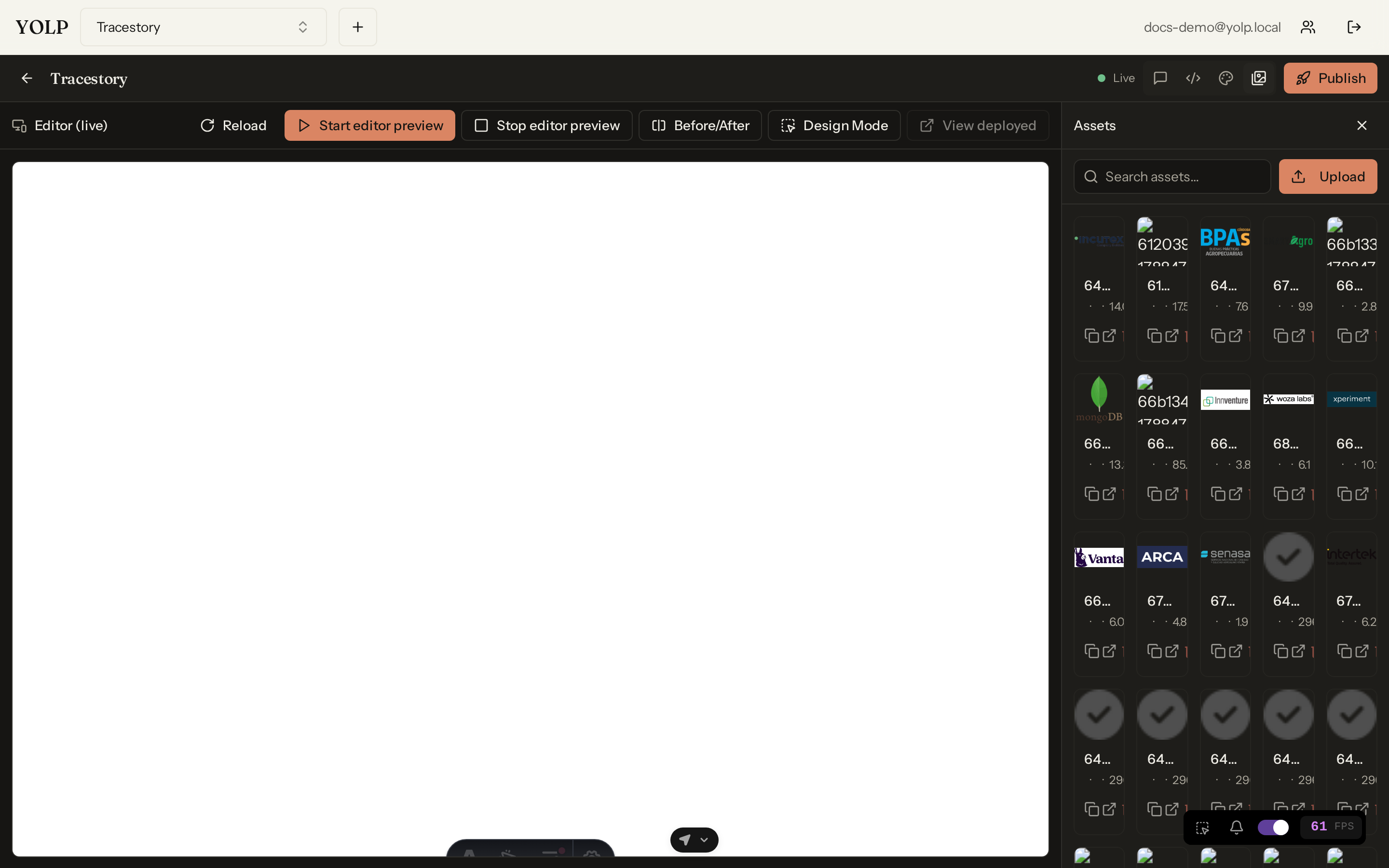
Uploading and managing assets
Upload brand assets — logos, photos, icons, documents — and manage them like any project file. Assets appear in the brand's workspace, are surfaced in the Assets panel, and are available to the site, the CMS image fields, and the Editor Studio.
AI image generation (Gemini)
AURAFUSE can generate images with Gemini straight into the site's assets. Ask
for imagery in the studio or via the agent's media tools, and the result is
staged into the site's public/assets/ directory — surfaced in the Assets
panel like any other project file, ready to reference from pages or content.
AI video generation (Veo)
For motion, AURAFUSE generates short looping background videos with Veo:
- Default format: roughly 6 seconds at 720p, muted, looped as a background clip.
- Each video ships with a generated poster still,
preload="metadata", and a gradient scrim so overlaid text stays readable. - Files are stored byte-identical to the provider output — no transcoding — and hard-rejected if they exceed 10 MB.
Generated files land in the site workspace (git-checkpointed) with a best-effort archive copy; the workspace file is the source of truth.
Cost guards
AI media is metered, so AURAFUSE enforces spend controls per brand:
- Daily quotas — a default of 50 images and 5 videos per UTC day, enforced when the job is enqueued and fail-closed: if the quota store itself errors, generation is refused rather than allowed to overspend.
- Per-job cost caps — requests whose estimated cost exceeds the cap are refused before any quota slot is consumed.
- Publish waits for media — publishing is refused while any media job for the brand is still running, so a site never ships with missing imagery.
Nothing is spent and nothing breaks until a Google AI key is configured — without one, media endpoints simply answer unavailable.
Tips
- Generate at the exact size you will display; looping backgrounds look best short and subtle.
- Watch your daily quota if you are iterating on many variants.
- Pair every video with strong text contrast — the scrim helps, but design for legibility anyway.